

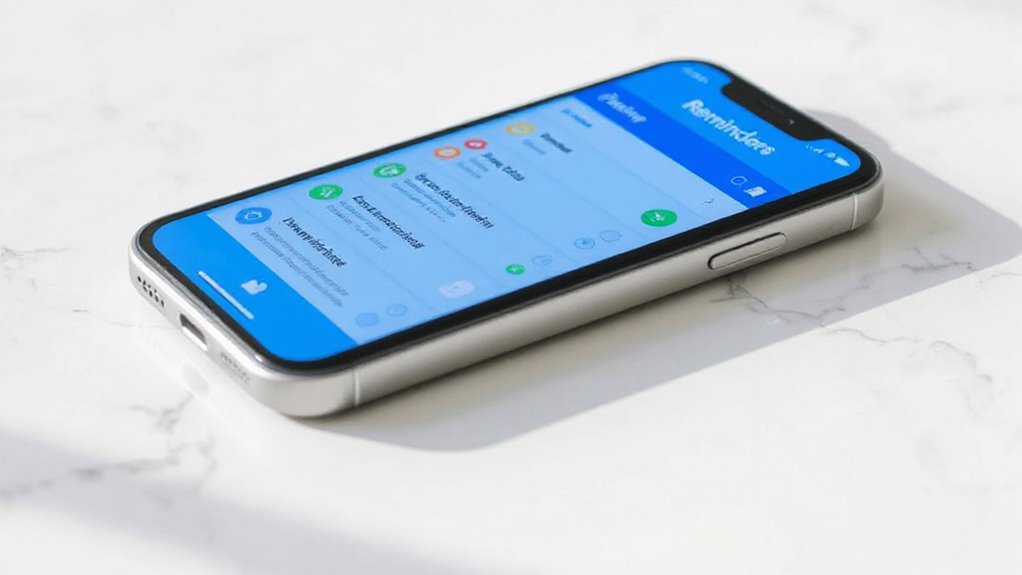
iPhone users can efficiently create to-do lists using Apple’s built-in Reminders app by tapping the “+” icon and typing tasks or utilizing Siri voice commands for hands-free entry. The app enables organization through folders, priority levels, and tags while offering location-based alerts and cross-device syncing via iCloud. Users can share lists for collaboration and access widgets for quick home screen viewing. For simpler needs, the Notes app provides basic checklist functionality that proves equally effective for straightforward task management.
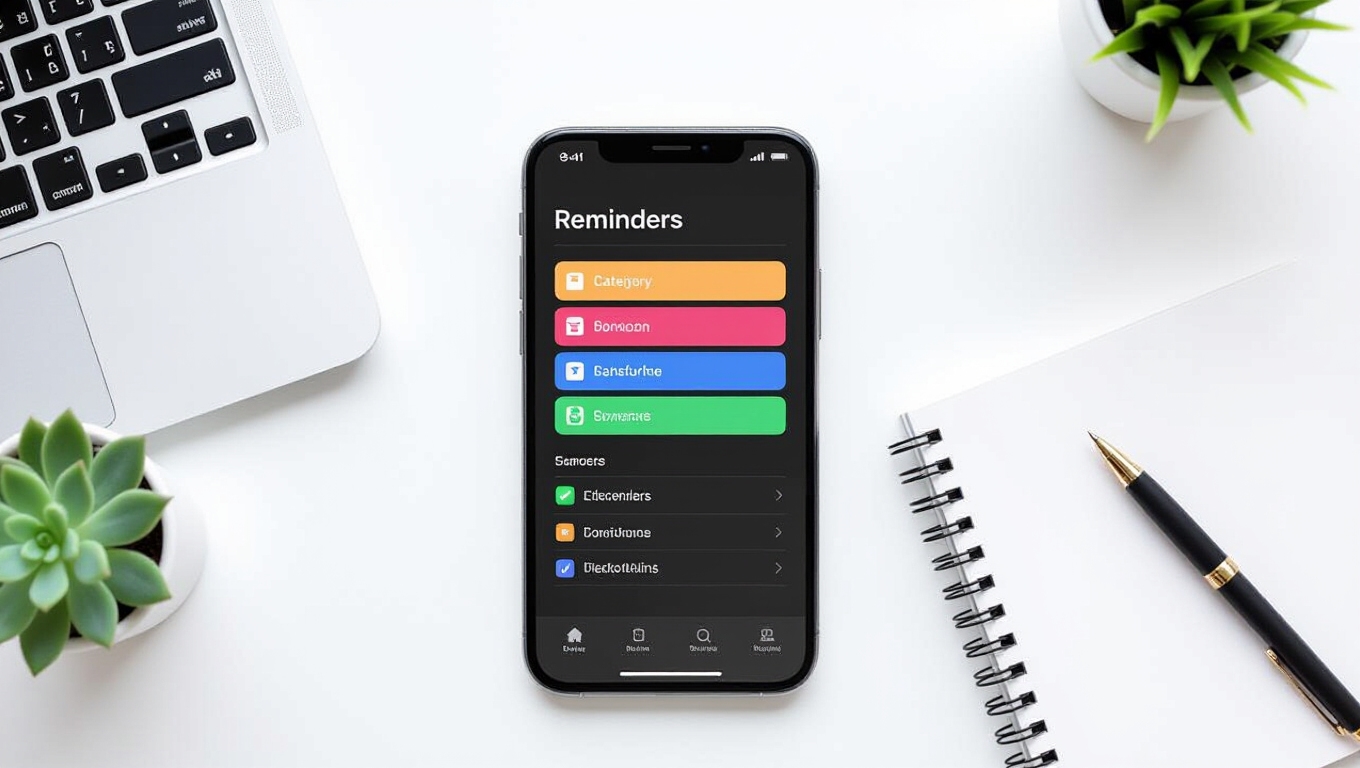
Why do so many productive individuals swear by digital to-do lists when managing their daily responsibilities? The answer lies in the seamless integration and powerful features that modern smartphones provide, particularly for iPhone users who have access to multiple built-in solutions and third-party applications designed to streamline task management. These tools can dramatically transform your daily workflow and boost efficiency by helping reclaim valuable time and reduce stress.
Apple’s built-in Reminders app offers the most straightforward approach to creating digital to-do lists. Pre-installed on all iPhones, this application syncs automatically across Apple devices through iCloud, ensuring tasks remain accessible whether working from a phone, tablet, or computer. Users can add tasks by simply tapping the “+” icon and typing the task name, while Siri integration enables hands-free creation and management of reminders for ultimate convenience.
Apple’s pre-installed Reminders app provides seamless iCloud syncing and Siri integration for effortless cross-device task management.
The Reminders app supports thorough organization through folders and priority levels. Lists can be categorized into logical groups such as Work, Personal, or Shopping, while individual tasks can be assigned priority levels ranging from Flagged to High, Medium, Low, or None. This hierarchical system helps users focus on urgent matters while maintaining visibility of less critical items.
For those preferring simpler solutions, the Notes app provides checklist functionality through its “+” icon menu. While these checklists lack the advanced features of Reminders, they excel for quick shopping lists or temporary task collections that don’t require syncing across devices. This simplicity makes it an ideal option for users who want to avoid complex project management platforms.
Advanced users benefit from setting deadlines and utilizing tags for enhanced organization. Tags enable quick filtering across multiple lists using keywords like Finances, Travel, or Home Improvement, while realistic deadlines prevent overwhelm and improve completion rates. Location-based reminders can be configured to alert users when arriving at or departing from specific addresses, making contextual task completion effortless.
Collaboration becomes effortless through list sharing features, allowing multiple users to add, edit, and mark tasks complete simultaneously. This functionality proves invaluable for household management, team projects, or family coordination.
Widgets enhance productivity by displaying upcoming tasks directly on the home screen, while templates facilitate quick creation of recurring lists such as weekly chores. For users requiring more sophisticated features, third-party applications like Things, Todoist, and Microsoft To Do offer advanced capabilities including time blocking, AI-powered filtering, and cross-platform synchronization, providing professional-grade task management solutions. The natural language processing feature in Reminders allows users to simply type phrases like “Call mom tomorrow at 5pm” and the app automatically sets the appropriate date and time.
Frequently Asked Questions
Can I Share My To-Do List With Family Members or Colleagues?
Users can effectively share to-do lists with both family members and colleagues through Apple’s Reminders app. Family Sharing automatically creates a shared Family list accessible to all group members.
For colleagues or friends, lists can be shared via Messages or Mail invitations. Recipients must accept invitations to join shared lists, and all participants can add, edit, and assign tasks using the @ symbol for enhanced collaboration.
How Do I Set Reminders for Specific Tasks on My List?
Setting reminders for specific tasks requires opening the Reminders app and tapping the info button beside each task.
Users can then activate “Remind me on a day” to establish precise dates and times for notifications.
The repeat function enables daily, weekly, or custom recurring alerts, while Siri voice commands offer hands-free reminder creation by simply saying “Remind me to” followed by the task details.
Can I Sync My Iphone To-Do List With Other Devices?
Users can sync their iPhone to-do lists across multiple Apple devices using iCloud when signed into the same Apple ID with Reminders enabled. This feature provides real-time synchronization across iPhones, iPads, and Macs.
Third-party applications like Microsoft To Do, Any.do, and Todoist also offer cross-platform syncing capabilities. These solutions guarantee task lists stay current and accessible regardless of which device someone uses to access their reminders.
How Do I Organize Tasks by Priority or Category?
Users can organize tasks effectively through multiple methods in iPhone Reminders. Priority levels range from low to high, with flagged options for urgent items. Tasks sort automatically by priority when selected.
For categories, users create themed lists like “Work” or “Personal,” then group related lists into folders. Tags enable cross-list categorization using keywords, allowing quick filtering across different projects and enhanced task organization.
Can I Add Photos or Voice Notes to My Tasks?
Users can add photos to tasks in the Apple Reminders app by tapping the camera icon within the reminder editor. This feature supports taking new photos, selecting from the photo library, or scanning documents, with one image per reminder.
However, voice notes cannot be attached directly. Users must transcribe voice recordings into text or utilize third-party applications for voice note functionality.
Related Posts