






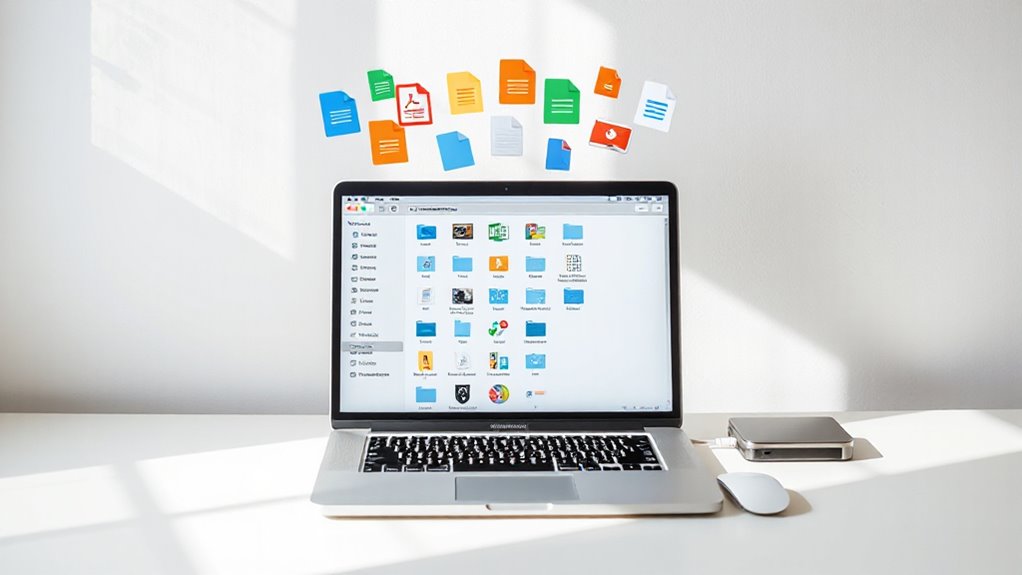
Mac users can effectively manage documents by utilizing built-in features like Desktop Stacks for automatic file grouping, customizable View Options, and strategic folder organization through drag-and-drop functionality. Keyboard shortcuts such as Command + N for new folders and Command + Z for undoing actions streamline daily workflows. Advanced third-party applications like DEVONthink Pro and Wrike offer enhanced document digitization, cloud-based collaboration, and security features including encryption and version control. This extensive approach transforms document chaos into organized productivity systems.
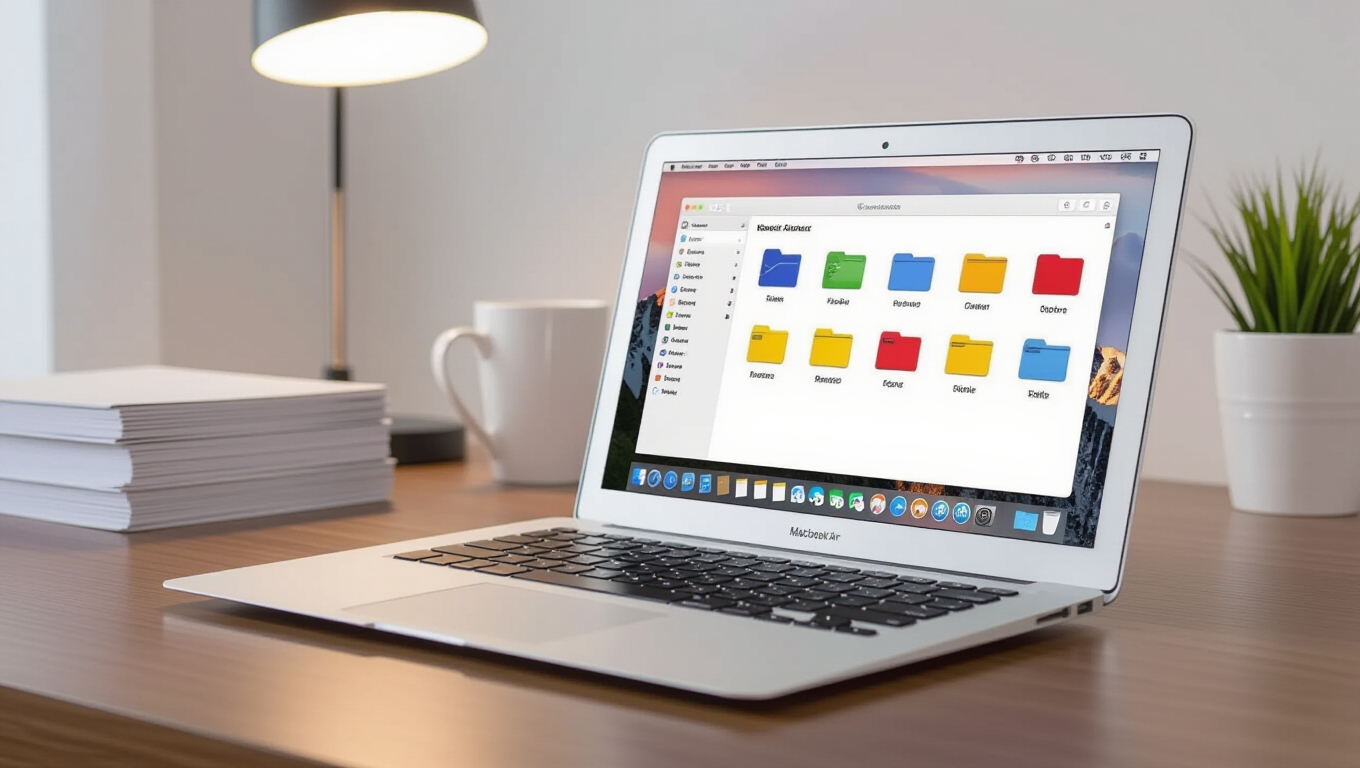
How can Mac users transform their chaotic digital workspace into an organized, efficient document management system? The answer lies in leveraging Mac’s built-in features alongside powerful third-party applications that streamline document organization and enhance productivity.
Mac’s Desktop Stacks feature automatically groups files by kind, date, or tags, maintaining a tidy desktop environment. Users can further customize their workspace by adjusting icon size, grid spacing, and text size through View Options. For those preferring manual control, disabling automatic sorting in Finder allows precise file placement while adhering to consistent naming conventions that improve file retrieval.
Desktop Stacks automatically organizes files by type, date, or tags while View Options allow complete workspace customization for optimal productivity.
The Finder application enables thorough file arrangement by name, kind, date added, size, or tags, while iCloud Desktop and Documents sync ensures seamless access across multiple Mac devices.
Creating and managing folders becomes effortless with keyboard shortcuts like Command + N for new folders. The drag-and-drop functionality facilitates quick document reorganization, while the Favorites sidebar provides rapid access to frequently used folders. When mistakes occur, Command + Z instantly undoes file actions, preventing accidental data loss.
Professional document management applications offer advanced capabilities beyond basic file organization. Solutions like Wrike provide cloud-based project management with document preview and integration with Google Drive, Dropbox, and OneDrive. DEVONthink Pro specializes in digitizing and organizing PDFs and Office documents with Mac-optimized interfaces.
EisenVault delivers thorough document archiving, indexing, and retention compliance features, while FolderIt offers cloud storage with triple backup encryption and OCR-enabled content search. LogicalDOC provides a comprehensive solution with smart tagging capabilities that significantly reduce data retrieval time for Mac users.
Modern document management systems prioritize security through bank-level encryption, multi-factor authentication, and thorough audit trails. These platforms support real-time collaboration, enabling teams to co-edit documents and provide feedback efficiently.
Integration with business applications like Office 365, Salesforce, and DocuSign streamlines workflows and enhances productivity. Version control features track document changes and preserve previous versions, ensuring data integrity. The Mac-specific document management market is projected to reach approximately $150 million in 2025, driven by increased demand for cloud-based solutions.
Role-based access control ensures secure viewing and editing permissions. Advanced search capabilities utilize metadata, content analysis, and OCR technology to locate documents quickly.
Automated workflows and approval processes reduce manual tasks, allowing users to focus on high-value activities while maintaining organized, accessible document libraries that support both individual productivity and team collaboration.
Frequently Asked Questions
Can I Password Protect Individual Documents on Mac Without Third-Party Software?
Users can password protect individual documents on Mac using several native methods without third-party software. Pages, Numbers, and Keynote offer built-in password protection through the File menu’s “Set Password” option.
PDFs can be secured using Preview’s export function with encryption settings.
Additionally, Terminal enables quick ZIP encryption with password protection.
These approaches provide robust security while maintaining seamless integration within Mac’s ecosystem.
How Do I Recover Permanently Deleted Documents From Trash on Mac?
Users can recover permanently deleted documents through several methods. Time Machine backup offers reliable restoration by connecting the backup drive and browsing to the original file location.
Third-party software like Disk Drill performs deep scans to locate deleted files.
iCloud’s “Recently Deleted” folder retains synced documents for thirty days.
Local APFS snapshots provide another recovery avenue through Disk Utility access.
What’s the Difference Between Icloud Drive and Local Storage for Documents?
iCloud Drive synchronizes documents across all Apple devices with the same Apple ID, enabling real-time collaboration and access from anywhere with internet connectivity.
Local storage keeps files exclusively on the Mac’s physical drive, accessible offline but limited to that device.
iCloud Drive offers version history and 30-day deleted file recovery, while local storage requires separate backup solutions for protection against hardware failure.
How Can I Sync Documents Between Multiple Mac Devices Automatically?
Users can automatically sync documents between multiple Macs through several effective methods. iCloud Drive offers the most seamless solution by enabling Desktop and Documents folder syncing when signed into the same Apple ID.
Alternatively, Finder supports USB or Wi-Fi syncing with automated options. Third-party solutions like SyncMate provide additional flexibility, while cloud services such as Dropbox and OneDrive offer cross-platform compatibility with exhaustive collaboration features.
Why Do Some Documents Show as “Locked” and How Do I Unlock Them?
Documents appear as “locked” on Mac due to system protection, user-set permissions, active file usage, or security measures for downloaded content. Users can unblock files by right-clicking, selecting “Get Info,” and unchecking the “Locked” checkbox.
For stubborn cases, Terminal commands like `sudo chflags nouchg filename` prove effective. Additionally, modifying permissions through the “Sharing & Permissions” section resolves access issues thoroughly.